Linux and the Sony Vaio PCG-GR300 series
|
|

Searching for, and finding a cutting edge, name brand laptop or notebook capable of running Linux with little hassle can be a challenge because few manufacturers are willing to support Linux. This is exacerbated by a certain, deliberately unnamed corporation with draconian overreach and attitude.
This document chronicles one such path using SuSE Linux, and explains the steps taken to make everything work just right on a Sony Vaio PCG-GR300 series notebook.
Top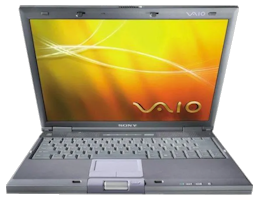
Sony's GR300 series consists of two models (PCG-GR370 and PCG-GR390) whose primary differences being the processor speed, base memory, and display type. Each model comes in three variants identified by the version of Microsoft that is preinstalled:
Although Sony states the machine can address a maximum of 512 Megabytes (MB) of RAM, up to one Gigabyte (GB) of RAM can be installed, provided the right memory modules are used.
Top2.1.0 - Specifications
| PCG-GR370 | PCG-GR390 | |||||||||||
|---|---|---|---|---|---|---|---|---|---|---|---|---|
| Processor | Intel Mobile Pentium III, 512 Kb L2 Cache, SpeedStep enabled. | |||||||||||
| CPU Speed | 1.13 GHz | 1.20 GHz | ||||||||||
| RAM | One 256 MB PC133 133MHz | Two 256 MB PC133 133MHz | ||||||||||
| Video Chipset | ATI Rage Mobility M6, 16 MB DDR SDRAM (dedicated). | |||||||||||
| Display | 15" XGA TFT, 1024x768 | 15" SXGA+ TFT, 1400x1050 | ||||||||||
| Storage |
|
|||||||||||
| Expansion | Two Type I/Type II or one Type III PCMCIA device. CardBus supported. | |||||||||||
| Connectivity |
|
|||||||||||
| Audio | AC'97 with 3D surround and analog device support, AD1881A DAC. | |||||||||||
| Input | Synaptics Touchpad with Jog Dial | |||||||||||
| Other Ports | Docking Bay, VGA, Microphone, Headphone, A/V-out, RJ-11 | |||||||||||
| Battery | One or two¹ LiON batteries, type PCGA-BP2E. | |||||||||||
| Dimensions | 12.8" x 1.5" x 10.6" (325mm x 37mm x 269.5mm), H/W/D | |||||||||||
| Weight | 6.24 lbs - 6.94 lbs (2.83 kg - 3.15 kg) based on configuration | |||||||||||
| Support | Knowledge Base & Downloads | Knowledge Base & Downloads | ||||||||||
| Full Specs | Download PDF | Download PDF | ||||||||||
1 - The computer ships with one battery and a "weight saver" dummy cover for the multipurpose bay, which can hold a spare battery instead of the CD-ROM drive.
Top2.2.0 - Hardware Information
The Linux kernel version plays a crucial rôle in determining how much of a computer's hardware is detected by the OS on boot. startup, as that is where support for said hardware is found. Less often, a given Linux distribution's build can also add or remove hardware support in relation to the kernel baseline. Just because a particular device remains unidentified however, does not infer there is zero support; it just means the kernel doesn't know it outright.
As a general rule, software that interfaces with an unrecognized device in question will, as a rule, still run correctly from the start. Nevertheless, there are times when additional tinkering is required to make things work (typically if the device is too new for support to be included). On rare occasions a device will simply not work at all; usually because there is no way to make it work, period. Fortunately, the Sony Vaio GR300 series is well supported as of kernel 2.4.20:
Linux will show a list of identified hardware during the boot. On a Sony Vaio PCG-GR390, the list the list comes up as follows:
00:01.0 PCI bridge: Intel Corp. 82830 830 Chipset AGP Bridge (rev 02)
00:1d.0 USB Controller: Intel Corp. 82801CA/CAM USB (Hub #1) (rev 01)
00:1d.1 USB Controller: Intel Corp. 82801CA/CAM USB (Hub #2) (rev 01)
00:1d.2 USB Controller: Intel Corp. 82801CA/CAM USB (Hub #3) (rev 01)
00:1e.0 PCI bridge: Intel Corp. 82801BAM/CAM PCI Bridge (rev 41)
00:1f.0 ISA bridge: Intel Corp. 82801CAM ISA Bridge (LPC) (rev 01)
00:1f.1 IDE interface: Intel Corp. 82801CAM IDE U100 (rev 01)
00:1f.3 SMBus: Intel Corp. 82801CA/CAM SMBus (rev 01)
00:1f.5 Multimedia audio controller: Intel Corp. 82801CA/CAM AC'97 Audio (rev 01)
00:1f.6 Modem: Intel Corp. 82801CA/CAM AC'97 Modem (rev 01)
01:00.0 VGA compatible controller: ATI Technologies Inc Radeon Mobility M6 LY
02:02.0 FireWire (IEEE 1394): Texas Instruments TSB43AA22 IEEE-1394 Controller
(PHY/Link Integrated) (rev 02)
02:05.0 CardBus bridge: Ricoh Co Ltd RL5c476 II (rev 80)
02:05.1 CardBus bridge: Ricoh Co Ltd RL5c476 II (rev 80)
02:08.0 Ethernet controller: Intel Corp. 82801CAM (ICH3) PRO/100 VE (LOM)
Ethernet Controller (rev 41)
The PCG-GR370 and PCG-GR390 are equipped with Phoenix BIOS, in a version that allows the user configure all settings except Power Management; the installed BIOS does support ACPI.
2.2.2 - MemoryAlthough Sony states that the GR300 series can only address a maximum of 512 MB RAM, this is not necessarily true. Linux laptop vendor Emperor Linux indicates that the machine can actually address up to 1 GB RAM! It requires replacing the two 256 MB memory modules with 512 MB ones. In fact that option is available when purchasing their offerings Vaio-based Gazelle systems.
There are two memory slots and the modules are PC133 133MHz non-ECC Unbuffered CL3 144-Pin SDRAM SODIMMs (PC133S-333-542); commonly Samsung part number M464S3254CTS-L7A
2.2.3 - DisplayMicrosoft Windows allows a maximum screen resolution of 1400x1050, but can also render a virtual desktop at up to 1600x2048. This carries through to Linux.
2.2.4 - Pointing DeviceIn addition to the touchpad, the machine has a scroll-wheel which Sony calls a JogDial. There are several drivers available to enable this device; it doesn't work "out of the box".
2.2.5 - Power ManagementAdvanced Configuration and Power Interface (ACPI) is a power management system. While supported by the GR300 series, ACPI is not fully implemented by it as of this writing.
In general, ACPI should be enabled for Linux to run properly. However, the degree of degree of kernel support greatly depends on the Linux distribution in use, its release number, and how its Linux kernel was configured. If ACPI support is absent or incomplete, a kernel rebuild with it fully enabled takes care of the matter.
A functioning ACPI subsystem is extremely important because it controls a number of critical functions, such CPU cooling. Another function managed by ACPI is Hibernation, but unlike cooling, it is not essential. Moreover, as of this writing it is still not fully mature. Note: If the installation will include hibernation capability, space will need to be allocated for it during disk partitioning may be required.
2.2.6 - MiscellaneousThe GR300 series does not include:
- a Floppy Disk drive (FDD). While Sony does encourage its customers to purchase theirs, a generic, USB FDD works just as well. As an added bonus, it will be recognized by the laptop as a boot device.
- a PS/2 (Mouse) port; it can be found on the optional docking port.
- an RS-232 (Serial) port; it can be found on the optional docking port.
2.3.0 - Important Information
The GR300 series has a number of unique quirks that should not be ignored regardless of what Operating System is installed on it. Overlooking this portion of the How-To will most assuredly result in massive headaches at some point.
2.3.1 - System VariantsThere are three variants for each of the two models in the GR300 series. The version of Microsoft Windows installed on the machine is what determines variant in question:
- Windows XP Professional: Installed on most systems sold via retail channels
- Windows XP Home: Installed on some systems sold via retail channels
- Windows 2000: Only available directly from Sony
If you are stuck with a version of Windows you don't want, a direct upgrade via a generic Microsoft Windows distribution comes with a lot of pitfalls. Many of the drivers are coded for the proprietary hardware and version of Windows they are shipped with, and those drivers are not interchangeable. This is not to say that conversion is impossible, but rather it is needlessly complicated.
For a successful upgrade, a generic instance of the Windows installation media is required, along with the correct driver binaries available from the Sony Support Web Site. Furthermore, those drivers must be installed in a specific order on account of dependency issues. Failure to do so will result in an unstable or non-running system. The only way to avoid these aches and pains is to purchase the desired system media from Sony ...at a very steep cost!
2.3.2 - System Recovery ToolIt is advisable to upgrade the stock 30 GB hard disk of the GR300 series to a larger capacity drive if the machine will run in a Windows/Linux dual-boot configuration. The fastest path for getting Windows onto the larger disk is using Sony's System Recovery Tool (SRT) to do so. Of course, the aforementioned manual install of Windows is also an option despite the gyrations involved.
The SRT has one very annoying requirement for a successful system recovery: Unless the Hard Disk is split 40/60 (Recovery/User), the SRT will either not run correctly, or at all. In other words, the original partition table structure must be restored before running the SRT if it was altered. In short, it will be necessary to:
- Delete the Linux installation
- Restore the 40/60 (Recovery/User) partition layout
- Restore Windows using the SRT ...and if you're running dual-boot:
- Resize the partitions to make room for Linux
- Reinstall or restore Linux
The only good thing here is that the SRT can restore the partition layout on its own, or use partitioning software to do so yourself. If SRT creates the partitions, it will also format them. Note: Sony's documentation states that the user can choose the partition format type (FAT32 or NTFS), but SRT does not give the user that option; it only formats partitions as NTFS. This may cause complications in dual-boot settings. Furthermore, the option for recovering just one of the partitions does not work at all!
SRT should never be used to recover the Windows system when creating a dual-boot environment. The partitions must be created and formatted with other software, especially if using a boot manager that requires a bootable FAT32 partition. When this method is used, SRT goes straight to the file restore stage. However, for that to happen, the Windows partitions must be split 40/60.
2.3.3 - Bootable CDsUnless a CD containing a Linux distribution is purchased, the likely route being taken will be to downloading an ISO image and writing it to disc yourself. It is prudent to test the disc on a different machine to verify that it does in fact boot because there is a known issue with the particular model DVD/CD-RW drives Sony uses in the GR300 series and how they handle recordable discs: The drives will refuse to boot from the disc, but the disc itself will otherwise read perfectly; commercially produced discs do not behave this way. Consequently, it may be necessary to create a bootable floppy disk to kickstart the CD.
Top2.4.0 - Dual-Boot: Putting Windows In Its Place
The following is specific to a Windows/Linux dual-boot installation. If the laptop will be defenestrated, none of it will apply.
2.4.1 - Minimum effortWhen a system is set up for dual-boot, it may be necessary to convert the boot partition from NTFS, which may not always play well with Linux, to FAT32. The partition type change will require it to be formatted. After the partition is formatted to FAT32, the system must be restored using the System Recovery Tool (SRT). Once the restore is complete, the User partition must be shrunk in order to make room for Linux.
2.4.2 - Herculean effortFirst and foremost, a significant number of hours are required to complete the process. On the operation side, a generic Installation CD for the desired version of Windows is required; upgrade edition discs will not work. All drivers, utility updates, and application updates for the specific GR300 series model are also required. These must be written to a CD. The documentation for each installer may also be required.
When a system is set up for dual-boot, it may be necessary to convert the boot partition from NTFS, which may not always play well with Linux, to FAT32. The partition type change will require it to be formatted. After the partition is formatted to FAT32, the system must be restored using the System Recovery Tool (SRT). Once the restore is complete, the User partition must be shrunk in order to make room for Linux.
Once Windows itself is installed, and before doing anything else, there are three drivers that must be installed. The installation must be in the following order:
- ATI Mobility Radeon Graphics Controller Driver
- Intel 82830 Processor to I/O and AGP Controllers Driver
- Intel SMBus Controller Driver
Once these drivers have been installed, the remaining drivers can be installed. Until the drivers (audio, network, modem, etc.) are installed, the devices they control cannot be used. Once the driver installation is complete, the utilities can be installed as well.
Since the Windows installation is generic, a series of popups referring to missing files and/or failed installs may appear. These are to be expected and can be ignored because Sony-specific DLLs are not present on the system; they only install from the image used by SRT. Every Sony-provided installer begins with a search for the DLLs in question and will install or update them as necessary. Unfortunately, this also entails a need to reboot the laptop after nearly every installation. If the error popup appears before an installation finishes, it means one or more of these DLLs is required to apply the driver. The system should be rebooted and the installer re-run to resolve the condition.
When certain Sony-specific files are unavailable before a driver installation, an error message may pop up during post-install cleanup. This is the result of the installer's file management during cleanup and means one or more components were not found. If this happens, the driver in question did not install correctly. Running the installer again will result in a normal installation in such cases.
After all the drivers have been installed, the Driver and Utilities CD 1 must be loaded, and its installation tool run to install the remaining Sony Libraries. Once these are in place, set up the various tools that interface with the computer, such as the JogDial application, BIOS configuration tool, etc. Note: Do not install these tools unless the libraries are installed first, as that will make the machine unstable!
At this point, the essential setup of the Windows installation is complete. If the PictureGear, VaioEdit Components, Support Agent, or other applications will be used, they can be installed from the Driver and Utilities CD set at this point. Their updates cannot be applied unless the applications are present.
At this point it is possible to install whichever remaining applications included on the Driver and Utility CDs that are desired.
2.4.3 - Personal ExperienceWhen the author obtained his Sony Vaio laptop, the plan was to wipe the Windows XP installation and replace it with Windows 2000 Professional. This did not work too well because Sony had not updated all of the drivers and made them available for download. Therefore, Windows XP had to be restored and used for a bit over a year. Here is why:
The original attempt utilized a generic Windows 2000 (SP2) CD. The Windows installation itself went well, but none of the laptop's peripherals worked. This is how the author learned about the Windows 2000 variant. Sony did not appreciate the enquiry into the desired switchover. That Tech Support agent also suggested trying the Windows XP installers on the CDs that came with the machine, but that didn't work at all; it clobbered the machine.
A different Tech Support agent indicated that the drivers are very specific, and thus the Windows 2000-specific drivers would be required. Those could be downloaded from the Sony Support Web Site; however, they were not available at the time. It took the better part of a year after this second contact before Sony made the proper drivers available for download! Those Sony-specific Windows 2000 drivers did not work very well. The one thing they did very well was to make Windows 2000 to "flip the bird" with a BSOD every single time! The only fix was to use SRT and return to Windows XP.
Sony took their sweet time in publishing good, reliable Windows 2000 drivers; those did not exist until Microsoft released Service Pack 4 for Windows 2000. At that time, the aforementioned install sequence, which also works for Windows XP, allowed the transition to go without a hitch.
TopIf this is your first ever Linux installation, please do not expect it to be hassle-free. Even a seasoned Linux user knows that it pays to expect a wrinkle or three.
3.1.0 - It's About TimeInstalling an Operating System, no matter which one it is, will take time. This is true even with a straightforward, full-default settings/options installation. Consequently it is exceedingly important to ensure there is enough time available for getting it done. And when proceeding with the installation, it should not be a rushed thing; haste not only makes waste, but in this case it can also lead to problems that will require correction.
The total time required for the installation is determined by a number of factors, including hardware, the distribution, and installation size, among others. Each distribution has its own way of executing the installation; some use a straight-through approach, while others offer what amounts to break points at which the process can be suspended; typically stages where a restart is required in order to move on to the next step. However, these are occurrences that should not be counted upon.
In truth, there is only one guaranteed break point that may be counted on: When the initial installation is complete and the system is ready to start for the first time. If the selected distribution behaves like this, the process could take 30 to 45 minutes from the start of the first installation task (creating and formatting the filesystem) to this point. Some of that will also depend on how much (if any) software is installed beyond the minimum needed to start the system.
Top3.2.0 - Linux Distributions
The biggest source of confusion and uncertainty for newcomers who want to give Linux a shot is the "D" word: Distribution.
3.2.1 - What Is a Distribution?The Linux Operating System is a common (base) package consisting of a kernel, its required support files, and a series of utilities that interface with them directly. A distribution (or, distro) is a collection of additional tools, utilities, and applications (packages), bundled and distributed along with the base package. All distributions include certain popular packages, there are also packages which can vary from distro to distro. In other words, a distro is essentially a customized collection that accompanies the Linux base package.
There are additional differences between distributions that have nothing to do with the base and additional packages. Instead, they mainly pertain to the flow of the installation process, the method for installing packages (the Package Manager), the file format used to deliver packages, and the particulars of the kernel. These particulars include the release version, and what is either baked in or accessible to the kernel.
3.2.2 - Choosing a DistributionGiven that at day's end, a distro is a fancy wrapper for the gift of Linux, the question of which one to use won't matter much in the ideal world. However, in the real world, several factors determine which distro is the right one; especially for newcomers to Linux.
Ultimately, the choice should be based on recommendations and personal preferences. With desktops anyway. Desktops have a distinct advantage: If there are unsupported components in the picture, they can usually be replaced with supported ones.Unfortunately, a laptop or notebook computer presents a completely different situation.
Laptop and notebook computers do not offer much in terms of swappable hardware if an incompatibility arises. Therefore, the distro choice must also factor in how much Linux experience the user has. An experienced user is better able to address the odd quirk, and could, theoretically, pick any distro. In contrast, a novice may want to choose a distro that eliminates most of the guesswork involved.
At the same time, it may happen that a particular distro includes certain atttributes that will trump the otherwise "right" choice. This applied to Sony Vaio laptops at the time of this writing (the latter half of 2003). Some distros fully support a wide array of models, while support is incomplete on others, and a few other distros don't support them at all. But full support will wend its gradual way to all eventually because it's already on that path; how long it will be is dependent on the maintainers of the specific distro. Toshiba laptops went through these same travails not that long ago, for example.
While none of this provides an adequate answer, it does provide food for thought. Test driving various distros may help in the decisionmaking process: Obtain ISO images for these and try them out. Because there may be distros that offer both "light" and "full" version ISO images, use the former for evaluations and the latter for the actual installation. The full version will include every package available in the distro and may span two or more discs, whereas the light version is typically fits on one disc and only includes the bare essentials.
3.2.3 - Select Distributions3.2.3.1 - SuSE Linux
Of all the available Linux distros, SuSE Linux offers support for nearly the entire Sony Vaio family. New models are added within months of release, and compatibility issues are resolved extremely fast. It also uses one of the friendliest, most comprehensive installation tools available. The GR300 series is 99.9% supported out-of-the-box as of release 8.2, with just one outstanding item: The modem must be enabled manually. Every distro requires this manual procedure, so it does not really count. Configuration and maintenance is extremely intuitive, making SuSE ideal for all experience levels.
SuSE Linux is a finely crafted, extremely capable, easy to maintain commercial distro that comes in two packaged editions: Personal and Professional. The latter edition is the most thorough and complete distro available. It includes a number of high-end applications that would otherwise have to be acquired separately, such as the SAP Database and VMWare. The Personal edition does not include those.
3.2.3.2 - RedHat LinuxRedHat Linux is one of the oldest, biggest and most important commercial Linux distros. The name has become synonymous with Linux, earning it both the highest mindshare and one of the highest installed user bases in the world. Overall, RedHat is a very powerful distribution and the best option for Enterprise implementations. However, its greatest strength is also its biggest weakness, as the distro is overwhelming for Linux neophytes: The approximately 140 pages of printed documentation assumes significant familiarity with Linux, while the neophyte-friendly documentation is only available electronically once the system is set up! Glaring faux-pas aside, RedHat Linux is one of the least problematic distributions on the market.
The strong position RedHat enjoys means that just about every third party commercial application available for Linux is released with RedHat in mind. While that does not keep the application from working under a different distro, some additional steps might be required to make it possible. RedHat has also made many significant contributions to the Linux base system, the most significant being the RedHat Package Manager (RPM). The core installation engine developed by RedHat is also the foundation for the installation systems used by other distributions.
Out-of-the-box support for the Vaio line is fair, but the older the model is, the better. Except for modem support, which requires separate installation and configuration, several components in the GR300 series (such as the MemoryStick slot and ACPI) require additional end-user manipulation to get working. To acheive that, certain patches must be applied to the kernel sources, after which the kernel needs to be recompiled. This process can be intimidating to a Linux newcomer. The configuration and maintenance tools are clumsy and incomplete. Some of them are found in the graphical environment, and some are strictly text based. Where no tool exists, the configuration file must be managed by hand in a text editor.
RedHat Linux is available in several end user versions, including Personal and Professional. The differences are minimal: a few application substitutions and additions. In terms of an application count for a commercial distro, RedHat offers the worst possible value: It expects the user to obtain, install and integrate many basic, but essential applications that come bundled in other distros. It would be one thing if the cost reflected this, but since the least expensive version costs the same as a competing distro's most expensive one, the situation becomes quite apparent.
French distro Mandrake Linux is well suited for users who have moderate experience with Linux. Compared to RedHat, it is a stronger distribution in some respects and falls short in others. The best way to summarize the distro is to call it an acquired taste. The installer is more thorough and intuitive than RedHat's (whose engine powers it), making it the distro's strongest feature for Linux neophytes after the SuSE installer. Unfortunately, what really matters is what happens after the installer finishes.
Hardware support in terms of the Vaio line is slightly inferior and usually a hair behind RedHat Linux. In other words, the older the Vaio model, the better the support. Support for the GR300 series, is a little better than RedHat's; the MemoryStick slot works out-of-the-box, but for ACPI to work a kernel rebuild is needed. Beyond that, Mandrake Linux is like the famed Maginot Line built by the French after World War One. Its weaknesses only become apparent once the system is installed and running: The administrative tools are a little confusing and sometimes generate synchronization issues or worse. Many of those tools are early-beta grade at best and crash-prone. The software update tool is a prime example: It wil inexplicably forget the installed applications database and cease to function altogether.
Quality control is also sub-par. For example, the ACPI daemon is installed from a package file containing null and corrupted files, but because the package was created that way, it passes all of the Package Manager integrity checks! The issue was reported to the publisher and acknowledged in an early beta for release 7.0 late in 1999, but hasn't been fixed yet in release 8.2, which was release in March 2003!
3.2.3.4 - For Experts Only!There are several distributions best suited for Linux experts. The author has not attempted any of them on the GR-300 series, but are mentioned as possible alternatives:
- Debian Linux is as close to "Vanilla" as any Linux distribution gets. It is a strong and solid distribution as well. Many Linux experts use Debian because it is comparatively untainted by modifications and patches. If Debian will be used on a Sony Vaio system, it is quite likely that the kernel will need to be patched and rebuilt. Moreover, it may be impossible to download the patches right to the machine.
- Gentoo Linux is a fairly decent, download-only distribution that works well on most of the Vaio product line. However, it has a number of features some users may find annoying or difficult where system maintenance is concerned.
- Slackware Linux is the oldest Linux distribution available, first released in July, 1993. Its installer is text-based, very terse, and has an archaic feel to it. As with Debian, a properly installed Slackware Linux system is both strong and solid. Overall, this is a fairly inexpensive distribution that is most commonly available in a one to four disc set. All of the documentation can be found on the discs, and can be read on any computer because they're plain-text files. Vaio support for specific models is a bit of a wild guess.
Information on these and other distributions can be found on the linux.org web site.
Top3.3.0 - Installation Methods
Once a Linux distribution has been selected, the next decision to make will be how Linux will be installed on the machine: Will it be the sole Operating System on the machine, or will it coexist and share space with Windows (and maybe other Operating Systems)? It is a big question with four possible answers:
3.3.1 - Single Boot (Full Defenestration)Perhaps the easiest method for installing Linux because it is the only Operating System on the machine. This involves removing Microsoft Windows (defenestration) entirely through the Linux installer, manual partition removal, or by hardware replacement.
A dual-boot system will require the resizing of existing Windows partitions to make room for Linux before installing it. In that regard it is a bit more complex. However, it is also a wiser method because it provides greater flexibility in the end. While some installers can take a lot of the guesswork out of the partition resize process during setup, others use a very terse method to do so. If the selected distro is one of the latter, there are several highly capable third party utilities that can accomplish the same thing, many of which also provide additional functionality.
Nothing more than a variation on the preceding methods for installing Linux, is to remove the original hard disk and installing a replacement. The original is then kept in a safe place should it ever be needed. Linux (and optionally Windows) are then installed on the replacement disk. The greatest advantage this method presents is that if the system needs to be shipped out for warranty service by the manufacturer, the original disk can be reinstalled prior to shipment. A manufacturer may otherwise point to the Operating System replacement as the root of the issue instead of correcting the problem. The manufacturer may also reformat the disk as part of the process causing data loss on the Linux side of things. Therefore the proxy method keeps data safe.
3.3.4 - Faux DefenestrationThough not in the same spirit as the preceding Linux installation methods, there are two additional ways to go about the matter. Neither method requires the creation of dedicated disk partitions. The first method involves creating a virtual filesystem to contain the Linux system, and a kickstart program to launch it. However, not all Linux distributions support this kind of installation directly. The second method uses a "Live Disc", a pre-configured Linux system on a CD that keeps variable data in a folder on the Windows side. This type of installation is great for evaluation purposes but not for a day-to-day use. However, only a few distributions are available in this format.
Top3.4.0 - Partition Basics
A computer hard disc must be configured before an Operating System can be installed. That configuration divides the disk into one or more sections (partitions). A disk can only support four basic partitions called Primary partitions. However, a Primary partition can be configured as an Extended partition, and this can be further divided into multiple Logical partitions. Each partition has a type designator which tells the computer what Operating System and structure (format) can be used on it. Some Operating Systems also have certain restrictions regarding installation.
- DOS/Windows: Both DOS and Windows require the Operating System files be installed on a Primary partition. The partition itself can be formatted to one of three filesystem types: FAT or FAT32 for DOS and Windows 98 and earlier, FAT32 or NTFS for Windows NT and newer.
- Linux: A Linux system is highly flexible. It can be installed on a Primary or a Logical partition using one of several conventional or journaling formats. The system also requires a dedicated partition for memory swapping, which has its own format.
Operating systems ship with a software tool that lets the user set up and manage disk partitions. Linux is no exception; it typically comes with more than one such tool. However, because these tools work at a low level, the end result may not work well with DOS/Windows. In contrast, the DOS/Windows partitioning tool can only create FAT, FAT32, and/or NTFS partitions. Because of this, it may be a good idea to obtain third party partitioning software that supports both (and sometimes additional) partition types, as they will produce reliable results. If that's not an option, then it is best to use the Windows partitioning tool to create the Windows partition(s), and the Linux tool to create the Linux ones.
One of the most capable partitioning tools is called PartitionMagic. Bundled versions of this application only recognize FAT32 and Linux filesystems. In contrast, the full version supports the full spread of DOS/Windows (FAT, FAT16, FAT32, NTFS), OS/2 (HPFS), and Linux (ext2fs, swapfs) filesystems. By extension, it safely creates and manipulates these filesystems, and does so in a non-destructive manner.
On GR300 series computers, the default 40/60 partition layout will need to be resized in order to make room for Linux. Since PartitionMagic uses a clear and concise graphical interface, the job becomes quick and simple.
3.4.2 - Boot LoadersWhen only one Operating System is installed, the computer's boot sequence can automatically launch the Operating System. However, the system does not know which to start when more than one Operating System is present, and a boot loader is required to do so. The boot loader allows the user to select the Operating System to be started.
Most Operating Systems include a boot loader, but these are often limited to the Operating Systems they support and/or the conditions for doing so. For example, the Microsoft Windows boot loader can only start instances of Microsoft Windows. There is one other solution: The full version of PartitionMagic includes a tool called BootMagic, a very user-friendly boot loader that can be used to boot several Operating Systems, including Windows and Linux.
Top3.5.0 - Performance Basics
For an optimal Linux system, it always pays to review the system hardware configuration before starting the Linux installation, and also to possibly tweak the installation process itself. Doing so will lead to much better performance in the long run.
3.5.1 - BIOS ConfigurationAt the heart of every computer's operation is its BIOS (Basic Input/Output System). To get the best performance from any computer, the BIOS must be set up correctly because it controls such diverse functions as device access, media device order, and hardware level security. Specific hardware components are also configured in BIOS.
3.5.2 - Mass Storage ConsiderationsMass storage is another major player in system performance. Although this category encompasses all storage media, both magnetic and optical, the primary focus is on hard disks. Desktop systems can contain more than one hard disk, making them easier to optimize. Laptops and notebooks on the other hand are almost always limited to a single disk, making optimization a little more complex.
When partitioning a disk for Linux, some software will require setting up the partitions on a geometric basis; that is Cylinders, Heads, and Sectors (CHS). Partitioning by geometry can on occasion yield slightly higher partition sizes compared to graphical partitioning software. Operating System requirements will dictate how a disk can be partitioned in order for it to start successfully. Disks can be divided into a maximum of four physical partitions. Some Operating Systems require at least one of these to be designated as Primary in order for them to start successfully. Partitions can also be designated as Extended and these can then be subdivided into Logical partitions. While all Operating Systems can access Logical partitions, not all can start successfully from them; Linux is one of the Operating Systems that can do so.
3.5.3 - Partitioning ConsiderationsWhile the initial thought would be to create two partitions for Linux; one for swap and another for the Operating System itself, system performance can be improved in many cases by creating multiple partitions for the Operating System. This is most apparent in systems that have more than one mass storage device installed, as the activity load can be divided across those devices.
Choosing the right filesystem format can also help optimize system performance. Depending on partition size, certain filesystems are more efficient than others given various factors specific to them.
3.5.3.1 - Windows FilesystemsMicrosoft Windows employs two types of filesystems:
- FAT (File Allocation Table): This is the original filesystem used by DOS and Windows systems and has three variants (FAT, FAT16, and FAT32). Floppy disks use the FAT and FAT16 filesystems, whereas hard disks utilize the FAT32 filesystem. FAT filesystems are fully supported by Linux for reading and writing, and therefore useful for sharing data between Operating Systems on the same machine. Given the structure of the FAT32 filesystem, it works best on smaller partitions due to the cluster:size ratio. In addition, the FAT32 filesystem only supports a maximum partition size of 2 Terrabytes (TB) and a maximum file size of 4 GB. If the system will dual-boot, Windows must be installed on a FAT32 Primary partition.
- NTFS (New Technology File System): This filesystem replaced FAT as the default filesystem in Windows NT, Windows 2000, and Windows XP. NTFS uses a different cluster:size ratio, making it more efficient on larger partitions. NTFS can handle a maximum partition size of 256 TB, and a maximum file size of 16 TB. The filesystem also supports advanced features such as journaling and filesystem encryption. Linux support for NTFS filesystems is limited: It can read data successfully, but writing to an NTFS partition can corrupt it. Therefore, NTFS partitions should always be mounted Read-Only to maintain filesystem integrity.
Linux can use a broad range of filesystems native to Linux, as well as filesystems used by other Operating Systems. The most common native filesystem types are:
- ext2fs (Second Extended Filesystem): This is one of the oldest filesystems supported by Linux, and similar to standard Unix filesystems. As with its Unix counterparts, ext2fs size limits are determined by how the data structure is defined when a partition is created, yielding a partition/file size of between 2 TB/16 GB and 32 TB/2 TB.
- ext3fs (Third Extended Filesystem): Developed by RedHat, ext3fs improves the ext2fs filesystem by adding journaling support. Journaling keeps track of filesystem changes so that the filesystem can be restored faster and with a lesser chance of corruption following a system or power failure. It has the same partition/file limits as ext2fs and lacks a number of features found on other journaling filesystems.
- ReiserFS: The first journaling filesystem to have support incorporated into the Linux kernel, ReiserFS, is a fast, highly advanced, efficient filesystem. Unlike ext3fs and the non-journaling ext2fs, both of which are rooted in other Operating Systems, ReiserFS is native to Linux. Many distributions default ReiserFS for partitions larger than 30 MB.
- swapfs: This is a specialized, dedicated filesystem used exclusively for memory paging and not user-accessible. It is required by Linux and is generated automatically by the Linux installer when allowing it to partition the hard disk. When partitioning manually, this partition must be created as well as failure to do so will likely result in an unstable system.
On the main, there is no hard and fast rule pertaining partition sizes in Linux given how Linux treats the integral filesystem. Unlike the Windows Filesystem, which mounts each partition as a discrete entity, Linux follows the Unix model. This model uses a unified structure wherein each directory can point to a mounted disk partition. Consequently, the only true limitation is the size limit of the partitions. There are two factors to consider when creating partitions manually:
- If the startup directory (/boot), will be in a dedicated partition, it must be large enough to hold all of the startup files plus the Linux kernel. However, given that eventually the kernel will be rebuilt or upgraded, there has to be enough space to hold several instances of the kernel.This partition must reside below the disk's cylinder 1024 boundary.
- The size of the swap partition should never be less than the amount of physical memory (RAM) installed in the computer, with the ideal size being one and a half times the amount of RAM. For example, if the computer has 1 GB RAM installed, the ideal swap partition size would be 1.5 GB. Whatever the swap space size, it gets added to the memory pool. In the 1 GB RAM + 1.5 GB swap, this would provide an effective pool of 2.5 GB. It is possible to have multiple swap partitions, though this works best when there is more than one physical hard disk available to the system.
Due to hardware limitations, the startup partition must reside below the disk's cylinder 1024 boundary to ensure Linux can start. To ensure this requisite is met, it is prudent to create a 128 - 256 MB partition to be mounted as /boot. When letting the installer handle partitioning, this will be set automatically if required.
TopThis section discusses the procedures required for a successful Linux installation on a Sony Vaio PCG-GR300 series laptop. The distribution used as a basis for the installation is SuSE Linux. As discussed previously, SuSE Linux is available in two editions, Personal and Professional, with the sole difference being that the Professional edition includes commercial applications not included in the Personal edition. SuSE Linux 8.2 Professional served as the basis for this documentation. The packaged version includes a installation media on both CD-ROM and DVD, as well as an extensive suite of printed documentation. Downloadable images are also available, but these were not attempted.
There is no difference between a CD and DVD based installation beyond how many disk swaps are involved. When installing from CD, the installer will list which CDs will be required; depending on what tools and applications will be installed, not all discs will be required.
Top4.1.0 - Getting Started
SuSE Linux is hands-down one of the easiest and most flexible distributions to install, something that becomes obvious as soon as the installer, YaST, loads. YaST is a powerful application that can run with either a text-based interface, or graphical user interface (GUI). Although the user may pick the interface, YaST automatically switches to text mode if the paltry 64 MB of RAM the GUI requires are unavailable. Both modes support keyboard navigation, but only the graphical mode supports mouse navigation as well. The only other differences are æsthetic.
The setup process itself has four phases: Data collection, system configuration, system installation, system finalization. Everything happens in memory until the physical steps of the third phase begin. The system setup is complete once the fourth phase finishes.
4.1.1 - PreliminariesA change to the boot order setting of the system BIOS is required allow a computer to boot from the optical drive. The computer must be powered off and restarted in order to access the BIOS and apply the change. To gain access, a hotkey is pressed at a specific moment during initial startup. The Phoenix BIOS hotkey is <F2>, and this key must be pressed as soon as the Vaio logo appears on the screen.
To change the boot order:
- Select BOOT.
- Use the up/down arrow keys to select CD-ROM DRIVE.
- Move it to the first position with <+>.
- Press <F10> to save and reboot.
- There is a known firmware bug affecting several DVD/CD-RW drive makes and models, including the Matsushita/Pioneer UJDA710 drive installed in certain Sony Vaio computers, including those in some PCG-GR300 models. The bug may result in an inability to boot Linux or run the installer correctly, from a DVD image. See Unable to Boot from the DVD, in the SuSE Software Database (SDB) for more information.
- If Linux will run in a dual-boot environment, the Windows partition size will need to be reduced. Although YaST is able to shrink the partition, it is safer to make the adjustment with PartitionMagic instead.
- If a new instance of Windows will be installed to replace the Sony Vaio instance, it must be installed before the Linux installation is performed. The Windows installer overwrites code saved to the hard disk Master Boot Record (MBR), thus removing the ability to start Linux. Although the MBR can be restored to reverse this, the installer might also corrupt one or more of the Linux partitions; the Linux system would then have to be reinstalled.
4.2.0 - Starting The Installer
SuSE Linux supports the hardware contained in the PCG-GR300 by default. It is able to boot from CD/DVD without issues unless the optical drive is one that is impacted by the bug discussed above.
Start the computer and load either DVD-1 or CD-1 in the optical drive so that the installation image can boot as soon as the BIOS startup completes. If the installation image fails to start from the disc, it must be started from floppy disk.
Booting from floppy disk is as simple as inserting the SuSE Linux boot diskette in the floppy drive and starting the computer. When prompted, insert the module diskette(s) to load modules required to support any additional hardware connected to the computer. Finally, load DVD-1 or CD-1 to complete the Linux startup sequence.
The startup sequence displays a Welcome screen, followed by a slideshow. A countdown progress bar is also displayed on the left side of the screen. The countdown should be interrupted with by pressing any key except <Enter> to avoid starting the system with the default settings. The progress bar disappears once the timer is stopped.
The installer defaults to a 640x480 screen resolution. Although this may seem acceptable, the resolution used by the installer carries over to the installed Linux system. A higher resolution is desired because all the Linux startup messages might not fit on the screen. These messages are useful for confirming a proper startup. Once off the screen, the messages can only be read from within the running system. Thus, if the logs are inaccessible, troubleshooting could become problematic. Pressing <F2> allows the user to change the screen resolution to something higher. It should be the highest resolution supported by the graphics card.
Manual installation should also be selected as a practical consideration. The kernel installed by the other options load all of the modules whether they're needed or not. This could lead to incorrect hardware detection or other conflicts when the installed system runs. On the other hand, a manual installation will allow the kernel to only load the modules the system actually needs. Press <Enter> to select the kernel.
4.2.1 - Kernel ModulesTo select and load all of the modules the system will require so the kernel can correctly interact with the hardware and connected peripherals, select Kernel Modules (Hardware drivers). Some of the modules allow the user to supply parameters to be used when loaded by the kernel, although most do not require any to be supplied. Parameters are only mandatory if multiple devices of the same type are connected to the system.
The order in which certain modules are loaded is crucial as well: An incorrect order may lead to load errors, load failures, strange behaviours, or even an unstable system. The load order is determined by the sequence in which modules are selected (selecting a module also loads it). Errors or issues that occur at this stage will carry over to the installed system. Missed errors can be fixed once the system installation is complete. Load order gaffes can be fixed in two ways: The safest is to reboot and start over. The alternative is to use the Unload Modules option, but this could result in other discrepancies later on.
In general, modules that activate static hardware are loaded first, followed by removable hardware that may depend on the static hardware modules (for example, the USB subsystem).
4.2.2 - Recommended Load Order- PCMCIA: All hardware is automatically detected and configured, so no changes are required. Loading the PCMCIA modules will also start the Card Services daemon.
- Universal System Bus (USB): The USB modules must be selected in order: usbcore, usb-uhci, input, hid, keybdev, and usb-storage. The first five modules enable support for USB input devices such as mice, keyboards, game controllers, etc., while the final module enables support for the MemoryStick slot and USB-connected storage devices.
- IEEE-1394: Provides access to the GR300 series i.Link port. To enable the port, only one module needs to be selected: ohci1394. This module will also load the remaining FireWire modules (ieee1394, ohci1394, and sbp2) in the proper order.
- Ethernet: The built-in Intel EtherExpress, dual speed network interface (NIC) is enabled by loading one of two possible modules: eepro100 and e100. Both modules work equally well, but SuSE Linux generally prefers the latter when auto-selecting a network module.
- IDE, RAID and SCSI: If external mass storage devices will be connected to a GR300 series laptop, the applicable modules must be loaded. Most of the modules are for desktop and server hardware, some can be connected to a laptop or notebook computer as well. The devices in question must be connected and powered before loading the module(s). The ide-scsi module must be loaded before any device-specific modules, as most mass storage devices emulate SCSI over the IDE bus; others do this over the Parallel port. The Parallel port modules should always be loaded as they provide all parallel port support. The load order is: parport, parport_pc, and ppa.
- External CD-ROM: Load the module which corresponds to the optical drive in question. Devices that do not have a corresponding module are usually enabled through a different module entirely (i.e. PCMCIA, USB, etc.); some research may be required if the device remains unrecognized.
- Filesystem: The load order for filesystem modules does not
matter. Select and preload the modules for the filesystem
formats that will be used when partitioning the disk (eg.
ReiserFS or ext3fs). If partitions will be mounted using SAMBA,
this module should be selected as well.To access Windows NTFS
partitions, this module can also be selected. However, please
note that NTFS support is read-only.
Selecting filesystem modules at this point is not overly important. Doing so merely ensures that all supporting files are preselected by default during the software selection stage, as opposed to a manual selection later.
Once all modules are loaded, return to the main menu.
Top4.3.0 - Configuring YaST
SuSE Linux builds the installed system's configuration before anything else happens. To start the process, select Start Installation/System. The installer will request the location of the source media. This can be CD/DVD, Hard Disk, or a Network location. Hard Disk and Network locations require additional configuration information so that the source files can be located; these settings are specific to the environment. The CD/DVD location merely requires the presence of CD-1 or DVD-1 in the optical drive. Once selected, the location is integrated into the running environment.
4.3.1 - About YaSTSuSE Linux is installed through the distribution's system maintenance utility, YaST (Yet another Setup Tool). It runs in either graphical mode, or in text mode. The graphical interface supports both keyboard and mouse navigation, whereas the text interface only supports keyboard navigation. Although the graphical interface starts by default, YaST will automatically switch to the text interface if something untoward happens. Causes for the switch include insufficient memory, unrecognized hardware, or hardware conflicts, among others:
- YaST requires a minimum of 64 MB RAM available in order to load and run the graphical interface. It is a paltry amount of memory, but it is a situation that arises on occasion.
- Certain video adapters cannot handle some of the video modes supported by the graphical interface provider. This does not mean the video adapter is unsupported; just that the selected video mode; setting a different video mode at startup should resolve this issue.
- Hardware conflicts are rare, but usually are a result of two devices trying to use the same interrupt or address space, and removing or reconfiguring the offending device tends to fix the issue.
- If the installation is aborted or retried, YaST will switch to text mode as a precaution.
Before the YaST graphical interface can load, Linux needs to start a graphical interface provider, or Windowing System. The instance of this provider (X-server) in the installation image only supports a limited number of video modes; additional modes may be supported once Linux is installed. To the uninitiated, the X-server start may seem disconcerting: The screen first fills with a black and white speckled background, and then an "X" shaped cursor appears. Once the X-server is fully started, YaST itself will load.
If a USB mouse is connected to the system, there is a possibility that it will not work when YaST starts; this is not unexpected, especially on laptops and notebooks with built-in pointing devices; the installation image's X-server can only support one pointing device at a time, and a built-in pointing device takes precedence. However, YaST does offer the opportunity to switch to a different pointing device during the install process.
Top4.4.0 - Configuring The Installation
The YaST interface consists of three tabs on the left side, labeled Language Selection, Installation Settings, and Perform Installation. These correspond to the three phases of the install process.
The first phase creates a blueprint for the way SuSE Linux will be installed. The information collected at this stage is stored in memory by the installer and then used as the actual installation progresses; most of this information is gathered or confirmed in a category by category basis.
4.4.1 - Language SelectionThe first step in preparing the installation is to configure the language YaST will use. The same language selection gets carried over to the Linux system installation. The process of selecting the default install language includes region-setting options such as time zone, and will help select the proper region-related packages later. The language and region settings will get fine-tuned later in the setup.
4.4.2 - Installation SettingsYaST will prompt to confirm the inclusion of several modules that were set when the installation system was started. These confirmations indicate that the modules in question were activated and that they will be included when the SuSE Linux system being installed runs. The modules are: usb-storage, sbp2, and lvm-mod. The last of these modules pertains to the Logical Volume Manager (LVM). If LVM will not be part of the installed system, its module can be rejected.
After the modules are confirmed, YaST will search for an existing Linux installation. If one is found, a query is presented to check whether the current session is a new installation, a system update, or if the installed system should be started (useful if it fails to boot on its own). There is also an option to cancel the setup.
4.4.3 - System ConfigurationThere are eight Installation Settings categories: Mode, Keyboard Layout, Mouse, Partitioning, Software, Booting, Time Zone, and Language. Each category configures a different aspect of the system. Except for the Booting and Partitioning options, the order in which the categories are modfied: Booting should always be modified after Partitioning because its settings are derived from the disk partition layout.
A settings summary is displayed when a category is highlighted. To modify the settings in the catergory:
- Mouse: Click on the category in the list and click Change to access it.
- Keyboard: Navigate with the up/down arrows and/or <Tab> to highlight a category. Press <Enter> to access it.
Accessing a category also provides an option to restore it to the "factory default" settings.
4.4.3.1 - ModeSelecting this category allows the user to change the type of installation being performed:
- New installation - Used if Linux is being installed for the first time, or to replace an existing Linux installation. This is the default mode YaST runs in when booted from CD/DVD.
- Update An Existing System - Used to upgrade an installed, older release of SuSE Linux to a newer one.
- Boot Installed System - Used to start an existing Linux installation instead of updating or replacing it.
This category allows for the selection of a keyboard type and layout. There are several layouts to choose from, including AZERTY, DVORAK, and QWERTY. It is also important to test the new layout if the default is changed. This will ensure everything works as expected.
The Expert Settings button enables a secondary configuration that permits the changing of some keyboard behavious if required.
4.4.3.3 - MouseAs per section 4.2.1, YaST can only use one pointing device by default, and on laptops or notebooks, built-in pointing devices take precedence. This category not only allows the user to add another pointing device, it also allows YaST to use it immediately!
On laptops or notebooks, the default pointing device setting, PS/2 Mouse (Aux-port), corresponds to the built-in pointing device (touchpad, trackball, or joystick). Changes and additions should be tested before moving forward, as selecting the wrong pointing device can lead to total loss of mouse control, and require resorting to keyboard-based navigation. On laptops and notebooks, loss of mouse control will likely extend to the built-in pointing device as well.
One of the scans YaST performs when it starts up searches for installed hard disks, optical disks, and removable media. The installer then creates a partitioning layout based on that scan and presents it a summary of the recommended changes. This summary also spells out how that summary will be applied, including formatting and integration into the Linux filesystem. The summary includes how existing Windows partitions will be integrated, and this structure can be accepted or changed.
The YaST partition configurator starts out with the current structure and checks if it is to be accepted, a new structure created based on the current structure, or if the structure is to be discarded and replaced entirely. The third option is best suited for those with prior Linux partitioning experience.
A sample partition layout appears below:
| Device | Size | F | Type | Mount | Start | End |
|
/dev/hda /dev/hda1 /dev/hda2 /dev/hda3 /dev/hda5 /dev/hda6 /dev/hda7 /dev/hda8 /dev/hda9 |
27.9 GB 1.9 GB 25.4 GB 533.3 MB 2.0 GB 2.1 GB 54.9 MB 1011.8 MB 20.2 GB |
f f f |
IC25N030ATDA04-07 Win95 FAT32 LBA Extended Hibernation Win95 FAT32 LBA Win95 FAT32 LBA Linux native (ext2) Linux swap Linux native (Reiser) |
/Windows/boot /Windows/data /Windows/swap /boot swap / |
0 0 261 3580 261 523 802 808 937 |
3647 260 3579 3647 522 801 807 936 3579 |
If the format of the individual partitions is to be changed, say from ext2fs to ReiserFS, select the desired partition and edit it accordingly.
The Software category summarizes the package groups scheduled for installation. Since the default list of packages to be installed is universal, it never includes packages that may be required for specifc hardware such as the GR300 series. Consequently, the list must be modified to add them.
YaST presents three options when entering the software package configurator, each corresponding to the type of Linux system to be installed. Each option produces a slightly different, default selection list:
- Minimum System: A stripped down, text-only configuration
- Minimum Graphical System: A graphical configuration, but without a desktop environment.
- Default System: A configuration containing all of the essentials, both text and graphical
Unless something unusual is planned for when the computer is in use, selecting is ideal for most installations.
Certain packages are needed for Linux to run properly on the GR300 series. None of those packages are included in any of the selection lists, requiring them to be added manually. There are also a few packages that will be useful once Linux is running on the computer, and others that are not needed and can therefore be excluded. The default selection list should be modified accordingly for this reason using the Detailed Selection option to start the Software Management utility.
The quickest way to locate and select/deselect packages is with the Search option found in the Filters dropdown. To conduct a search, provide an identifying string and filter by Description. The search will return a list of packages meeting the search parameter; a tick mark next to a package name means it was selected for installation. Clicking on an unselected package adds it to the list, whereas a selected package requires two clicks to deselect it. Once all changes have been made, a dependency check is necessary to ensure that all package requirements are being met.
The following package changes should be made to before any others. Search for the following strings to select packages. Any unselected packages should be added:
-
acpid
- » acpid: The ACPI daemon, which manages the system's power management functions.
- » acpiw: A graphical monitoring utility for the ACPI subsystem.
- » akpi: An ACPI monitor applet for the KDE Desktop system tray.
- » pmtools: An for ACPI and Power Management troubleshooting utility.
-
firewire
- » dvgrab: A utility for creating AVI format files from media played back over the Firewire link.
- » libdv: A Digital Video Codec used by most Firewire capable camcorders.
- » libraw1394: A library providing direct access to the Firewire bus.
-
hsf
- » hsflinmodem: Tools for installing and configuring the HSF Softmodem.
- » km_hsflinmodem: Source code to include HSF Softmodem support in Linux kernel builds.
-
lphd
-
» lphdisk:
Creates a Suspend-to-Disk (Hibernation) partition.
Read the documentation before using!
If a different hibernation tool is preferred, the swsusp utility is a good alternative to lphdisk. However, this package is not part of the SuSE Linux distribution. It must be downloaded from the developer's web site and installed separately.
-
» lphdisk:
Creates a Suspend-to-Disk (Hibernation) partition.
Read the documentation before using!
-
pcmcia
- » hotplug: Provides core support and drivers for PCMCIA, USB, and other hotplug devices.
- » kde3utils-laptop: Support tools for PCMCIA devices in the KDE Desktop.
- » km-pcmcia: Source code for including PCMCIA support in Linux kernel builds.
- » pcmcia: PCMCIA hardware support provider for Linux.
- » pcmcia-cardinfo: Administrative tool for monitoring and controlling PCMCIA cards.
-
scsi
- » scsi: Useful SCSI device tools, including an on-the-fly SCSI device mounting utility.
- » smartmontools: The SMART Monitoring tools suite for ATA (IDE) and SCSI Hard Disk health.
- » xscsi: A graphical interface for tools contained in the scsi package.
-
usb
- » usbview: An USB device information and troubleshooting utility.
-
vaio
- » powertweak: A utility that controls LCD backlights. Requires kernel support for /proc/bus/pci.
The following package changes should be made after the preceding selections. Search for the following strings to select packages. Any selected packages should be removed:
-
apm
- » apmd: The APM daemon must be removed due to conflicts with acpid.
The following packages should only be included if the relevant hardware is connected to the system; Read the package descriptions for details and applicability:
-
pcmcia
- » avmfritzcapi
- » bluez-utils
- » pcsc-gpr400
Additional packages can be selected once the above changes to the selection list have been made. This will insure the proverbial rug does not get pulled out from under the installation. Once all of the changes have been made, a final dependency check should be run.
4.4.3.6 - BootingThis category configures a boot loader for the system. By default, SuSE Linux installs the GNU GRand Unified Bootloader (GNU GRUB), for the purpose. GNU GRUB, or simply, GRUB, gets installed on the primary hard disk's Master Boot Record (MBR) by default. However, GRUB has an advantage in that it can also be installed to a different location.
Select Boot Loader Location to install GRUB elsewhere. The configurator will present a list of locations derived from the partition layout. A different boot loader location is best left to experts and if a non-Linux boot loader will also be used.
After Linux is installed, GRUB will always load as part of the boot cycle. It then waits a preset time during which the user can select the Operating System that will be started. If no selection is made, GRUB loads the one identified as the default.
The Default Section specifies which Operating System will be started automatically that selection is not made. Configuring this is as simple as selecting the image from the list presented by the configurator and marking it as the default. The order in which GRUB will list the images can be modified as well, but the startup options associated to each image should only be changed by experts.
Available Sections is similar in function and behaviour to Default Section.
Activate Boot Loader and Replace Code in MBR are settings for experts who fully know and understand what they're doing.
Two of the remaining options of the configurator to change the appearance of the GRUB menu's text mode, and the delay (in seconds) for the auto-start timer discussed above; its default is 8 seconds.
By default, YaST sets an initial time zone based on the language selection. This default can easily be wrong, and this configurator corrects it very simply by choosing the correct geographical region and then the closest location therein. If no match is possible, the most appropriate time zone can be set from one of the Global regions, however these set times based on their Greenwich Mean Time (GMT) offsets.
Linux can set the computer's internal clock to use either local or Coordinated Universal Time (UTC). Actual clock values are passed to applications when the system is configured to local time, and clock values are converted to local time when configured to UTC. This setting is configured via Set Hardware Clock.
This configurator sets the default language used by the system. Its default values were set when YaST started, but can be changed or adjusted from here.
Top4.5.0 - Performing The Installation
With the installation blueprint finished, the physical installation can begin. Up to this point, YaST will not have made any changes to the system as the blueprint is stored in memory. This phase of the setup process carries out (commits) those changes. The installation requires little to no user intervention depending on the source media in use.
The Accept button in the lower right portion of the screen launches the process. YaST offers one final chance to make changes to the blueprint, and only gets to work once the user confirms the installation with Yes, Install.
YaST begins by preparing the filesystem. It:
- applies the partition layout,
- formats the newly created Linux partitions,
- formats any other partitions flagged for formatting, and
- mounts the partitions.
YaST installs the base Linux system once the new filesystem is mounted. This is followed by all of the other packages tagged for installation.
A progress meter on the right side of the screen tracks the status of the process. The progress meter consists of one or more progress bars, each representing a physical disc or other source media. It also provides an estimated time until the install process completes. While YaST installs the system, it also plays a slideshow highlighting various features of SuSE Linux. It also offers a peek under the installation hood by selecting Details (which can be reversed with Slide Show.
After the software installation finishes, YaST creates the basic configuration files, installs the live Linux kernel, and finally the boot manager. At this point, the newly installed SuSE Linux system is ready for its first boot. YaST will shut down and restart the computer in order to do so.
It is a good idea to remove the CD/DVD from the optical drive after the shutdown completes, but before the system can boot from the optical drive again. However, nothing bad will happen if it does due to the nondestructive nature of the first half of that startup. This is also a good stopping point if one is required, before moving to the next phase of the setup process.
Top4.6.0 - Finalizing The Installation
With the physical installation of SuSE Linux complete, the next phase can begin: Starting the system for the first time and finalizing it. If everything went well, the system will boot into and launch the boot loader (GRUB, unless a different boot loaded is in use). The loader's menu reflects the options set during the previous phase. If Linux is not the default option, select and launch it.
The very first boot is generic and will be different from all future startups. YaST will again start automatically, this time to process a setup script that performs administrative functions, commits any remaining hardware and software parameters set in the previous phase, and prepares any connected devices it finds and recognizes, among other things
Once YaST completes the automatic configuration, it launches an interactive configuration. YaST also displays its Release Notes as part of the interactive configuration. Once all changes in the interactive configuration are complete and committed, the post-installation process will be finished.
4.6.1 - Administrator PasswordThe most important part of securing any computer is setting a password for root, the System Administrator account. SuSE Linux requires this password to be at least 5 characters long. Because root is all-powerful, its password should be complex and difficult to guess. However, a scheme to recall the password should also be in place as the system cannot be managed without it.
This step of the post-install setup contains five options related to configuring Network Interfaces. YaST lists all the interfaces it detected. The interfaces that will be in use must be checked and configured properly. YaST tests the network configuration after the configuration is complete, then downloads and applies any software patches required to bring the system up to date. The test itself can also be skipped and the patches downloaded later.
4.6.2.1 - Ethernet InterfaceThe built in Ethernet card, having been recognized and the driver set in the previous phase, will have a partial configuration associated with it. That configuration must be reviewed and, if necessary, updated at this time.
By default, the interface is linked (identified) as eth0 and configured to use Dynamic Host Configuration Protocol (DHCP) to obtain its IP (network) address. If DHCP is not in use, or the machine will use a static address, the address information for the interface will require an update.
Update Host Name and Name Server to change the identifier for the computer. This helps users identify the system on the network. If the computer is going to be on a larger (i.e. corporate) network, this information may be obtained from the Network Administrator.
4.6.2.2 - Dial-up Networking InterfaceBecause it can be used for Dial-up Networking, one of the network interfaces YaST found and included is the built-in Modem. Because the Modem in the GR300 series is a software-driven Modem (also known as a SoftModem or WinModem), an attempt to configure it will fail. A WinModem can only be configured for Dial-up Networking after the WinModem's own software is properly set up. That setup takes place after the second login.
4.6.3 - AuthenticationThere are various methods available for authenticating users on the SuSE Linux system. Because the best method could vary based on the larger environment, consult the Help Text on the screen or the Network Administrator, to determine the proper method to apply.
4.6.4 - Local UsersAt least one local user must always be added to a Linux system. The process for doing so is a fairly straightforward no-brainer.
The last step configures the interactive elements of the system.
4.6.5.1 - VideoThe video subsystem must be configured in order to take advantage of the Linux Graphical User Interface (GUI). The Video adapter must be configured throught the Graphics option. This launches the SaX2 utility, which configures both the adapter and the X-server that will drive the GUI. SaX2 also displays a message during the launch, that there is no monitor present; this is normal and addressed by this configuration step.
SaX2 splits the setup into four main components:
-
Desktop: Configures all display settings through five
options, each of which should be reviewed:
- » Monitor - At Double-clicking this item brings up a list of configured monitors with a single item listed. Select it, then choose —> LCD and 1400x1050@60Hz to configure the display and its resolution. Save the setting and choose Finish to complete the step.
- » Graphics Card - YaST should have already detected and configured the graphics card. However, this setting should be reviewed in case something went awry; it should be set as ATI Radeon LY.
- » Resolution - This should be preset to a default of 1400 x 1050, 16bit, based on the Monitor setting, above. The colour depth could be increased to 24bit, but this comes with limitations.
- » Virtual Resolution - By default, the desktop size is always equal to the screen resolution that is in effect. However, the Linux GUI allows users to create desktops that are larger than the screen resolution; the desktop can pan and scroll if this is the case.
- » 3D Acceleration - Enable this option if the system will be used for playing games. Although a warning about 3D/OpenGL support being experimental is displayed, it works fairly well. The actual mileage may vary however. If difficulties are encountered with 3D, the feature can be shut off later. An additional warning will be displayed if colour depth was set to 24bit. The colour depth may or may not cause difficulties, and can also be adjusted later if necessary. The rule of thumb for all of 3D Acceleration is, "Mileage may vary".
- Multihead: Not supported on laptop and notebook computers per-se, multihead sets up the ability to combine multiple displays into a single entity. It requires either one graphics adapter per display, or a graphics card that can do so. It may be possible to do this with a docking station that allows it.
-
Input: This is used to configure user input devices:
-
» Mouse -
Double-clicking on this item brings up a list of
pointing devices. SaX2 detects and configures the
touchpad automatically. To simultaneously use two
pointing devices (the built-in Touchpad and an
external device), set:
- ¬ Port - Touchpad: /dev/pointer0. External device: /dev/pointer1.
- ¬ Expert - Touchpad: Enable 3 button emulation. External device: Enable Mouse Wheel.
Both pointing devices will now work at the same time.
- » Keyboard - The GUI keeps its own keyboard configuration. Adjust the keyboard type and layout by double-clicking this item and make any necessary adjustments. The default setting for the keyboard is Standard keyboard [pc104]. Changes to this should be tested!
- » Tablet - Only applies only if a Graphical Input tablet is connected.
- » Touchscreen - Only applies if a touchscreen display is connected.
-
» Mouse -
Double-clicking on this item brings up a list of
pointing devices. SaX2 detects and configures the
touchpad automatically. To simultaneously use two
pointing devices (the built-in Touchpad and an
external device), set:
- AccessX: Sets up and enables "Mouse-over-keypad" capabilities.
After all applicable items have been modified, the configuration must be tested. Finalize will initiate a test version of the X-server to ensure everything is working properly. If something is incorrect, terminate the X-server by simultaneously pressing <Ctrl> <Alt> <Backspace>. If it does not shut down this way, it will shut down on its own 30 seconds after the last keypress or mouse click. If everything works as expected, save the configuration. This also stops the X-server test instance and closes the video configurator.
The audio subsystem should work as-is on all GR300 series laptops, as the hardware is fully supported. Still, it never hurts to test it: Select the sound card, then Volume, and finally Test, to hear a brief audio test clip.
4.6.5.3 - PrintersLocal printers are added to the system here. There is a large variety of printers on the market and a myriad of configuration options that are specific to each particular to each. SuSE Linux detects and configures some of them automatically. Others require a manual configuration.
The GR300 series does not have this kind of device built-in.
Top4.7.0 - First Login
With the setup process finished, YaST will terminate and prepare the newly installed system for its first login. Although the setup itself is finished, a few minor, albeit important configuration steps that must be completed. Omitting these will, in some cases, lead to serious issues.
Once YaST returns the system to the login screen, log in as a regular user. This first login will take a bit longer than it will in the future, as the desktop environment will set up.
4.7.1 - Enable ACPISuSE Linux installs the KDE desktop by default. After it finishes loading, launch the YaST2 Control Center (control panel) in administrative mode:
- Click on the KDE "Start" button in the task bar.
- Select Run Command
- Type sudo YaST2& and press <Enter>
- Enter the root password, if prompted and press <Enter>
Linux support for ACPI is still evolving as a whole. The degree to which it works depends both on the system hardware, and on how much support is built into the kernel. SuSE only Linux enables those functions that are known to be stable. The PCG-GR300 series has an extremely robust ACPI implementation, meaning that ACPI support is fairly complete once activated.
The ACPI functionality, while built into the kernel, is idle. The functionality that activates it must be set up before anything else is done on the system, because one item ACPI regulates is system temperature. If this does not happen, the computer will almost definitely overheat. In turn, this will lead to the damage of critical components, and ultimately a total system failure.
To enable ACPI functionality, its daemon must be enabled so it will run whenever Linux is running. In the YaST control panel, select:
- System
- Runlevel Editor
- Runlevel Properties
- Locate and select acpid
- Tick the runlevel checkbox identified as B
- Select Finish
- Reboot the system after verifying the current status of ACPI
There are many ways to confirm ACPI is operational, there is one quick-and-dirty method for doing so. After enabling the daemon (but before restarting the system):
- Click on the KDE "Start" button in the task bar
- Select Control Center
- Open Power Control
- Select Laptop Battery
- A message will appear stating that power management is "not enabled or configured correctly"
- Reboot
- Repeat steps 1-4
- A battery monitor will be visible if the daemon is running
4.8.0 - Second Login
The last remaining setup steps can now take place.
4.8.1 - Configure The ModemBeing a SoftModem, the correct driver must be activated, linked, and configured, so that it will work correctly. Everything is handled with a script launched from the command-line:
- Click on the KDE "Start" button in the task bar.
- Select Run Command
- Type sudo bash and press <Enter>
- Enter the root password, if prompted and press <Enter>
- Type hsfconfig and press <Enter>
This executes the Conexant HSF driver installation program. It will ask for specific information based on your geographic location to configure the driver and the modem will be ready when finished. Make note of the symbolic link associated with the modem (typically /dev/modem), as Dial-up Networking will require it.
Do not close the terminal window at this time.
4.8.2 - Configure Dial-up NetworkingNow that the SoftModem has been set up, Dial-up Networking can be enabled as well. Type YaST2& in the terminal window, and press <Enter> to launch the YaST Control Panel. Select:
- Network Devices
- Modem
- Select Other (not detected)
- Click Configure/span>
- Verify or update the Modem association set in the previous section
- Set the Dialing Properties to Necessary
- Set any special initialization strings in Details (optional)
- Click Next
- Choose a preset provider or add your own. For either:
- enter the access phone number,
- enter the Username and Password,
- enable dynamic addressing under IP Details or enter the supplied IP addresses, and
- enable the Firewall.
- Click Finish to save the configuration.
After the configuration is saved, set up email using the parameters supplied by the provider. Finally, close the terminal window by typing exit and pressing <Enter>.
4.8.3 - Finishing upAt this point, all of the essentials are complete and the system is effectively ready for use. It goes without saying that installed applications may require some setup and/or customization when they are started for the first time, but this falls outside the scope of this document. The same applies to individualized desktop customization.
4.8.4 - Keeping Current: The System And YOUTo keep the system current, SuSE Linux includes YOU (YaST Online Update), a utility that downloads and applies patches and other updates to the system. It can be accessed from the Control Center, under Software, as Online Update. Run YOU on a regular basis, or better yet, set it to run on a schedule.
Top5.1.0 - Resources
5.1.0.1 - Resources Cited In This Document
- 1.0.0: Sony Vaio Web Site
- 1.0.0: SuSE Linux Web Site
- 2.0.0: Microsoft Windows XP
- 2.0.0: Microsoft Windows 2000
- 2.1.0: Intel Mobile Pentium III processor
- 2.1.0: ATI Rage Mobility M6 video chipset
- 2.1.0: Intel Architecture Labs AC'97 Sound Card
- 2.1.0: Synaptics Touchpad
- 2.1.0: Sony Vaio PCG-GR370 Knowledge Base & Downloads
- 2.1.0: Sony Vaio PCG-GR390 Knowledge Base & Downloads
- 2.2.1: Phoenix Technologies, Inc.
- 2.2.2: Emperor Linux
- 2.2.5: Advanced Configuration and Power Interface (ACPI)
- 3.2.3: SuSE Linux Web Site
- 3.2.3: SAP Database Software
- 3.2.3: VMWare Software
- 3.2.3: RedHat Linux Web Site
- 3.2.3: RedHat Package Manager (RPM)
- 3.2.3: Fedora Core Web Site
- 3.2.3: Mandrake Linux
- 3.2.3: Debian Linux Web Site
- 3.2.3: Gentoo Linux Web Site
- 3.2.3: Slackware Linux Web Site
- 3.2.3: linux.org Web Site
- 3.4.1: PartitionMagic disk partitioning software
- 3.5.1: BIOS (Basic Input/Output System)
- 3.5.3: FAT (File Allocation Table) filesystem
- 3.5.3: NTFS (New Technology File System) filesystem
- 3.5.3: ext2fs (Second Extended Filesystem) filesystem
- 3.5.3: ext3fs (Third Extended Filesystem) filesystem
- 3.5.3: ReiserFS filesystem
- 3.5.3: swapfs filesystem
- 4.1.2: SuSE SDB: Unable to Boot from the DVD
- 4.2.0: SuSE SDB: Creating Boot and Modules Floppy Disks
- 4.3.0: Windowing System
- 4.4.3: The AVI format
- 4.4.3: swsusp Developer Web Site
- 4.4.3: SMART Monitoring
- 4.4.3: GNU GRand Unified Bootloader (GNU GRUB)
- 4.4.3: Greenwich Mean Time (GMT)
- 4.4.3: Coordinated Universal Time (UTC)
- 4.6.2: Dynamic Host Configuration Protocol (DHCP)
- 4.6.2: IP Address
- 4.7.1: Unix/Linux services (daemon)
- 4.8.4: YOU (YaST Online Update) Utility
Top
5.2.0 - Easter Eggs
SuSE Linux includes a few easter eggs scattered throughout. One such easter egg can be found on CD-1/DVD-1. Happy hunting!
Top